
How to create a support ticket
Overview
Support tickets let your organization contact the FlexSite team from the dashboard. Each ticket gets a reference number (for example FS- followed by a short code) so you can track the conversation and share it with your team.
Before you start
Active subscription
Support tickets are available when your organization has an active subscription. If your plan is not active, the Support page explains that and links you back to your organization.
Who can open a ticket
You can use New ticket if you are either:
- An organization administrator, or
- A project administrator or someone with edit/update access on at least one project you can access.
If you do not see New ticket, ask an org or project admin to add you to a project with the right role, or to open the ticket on your behalf.
Try self-service first
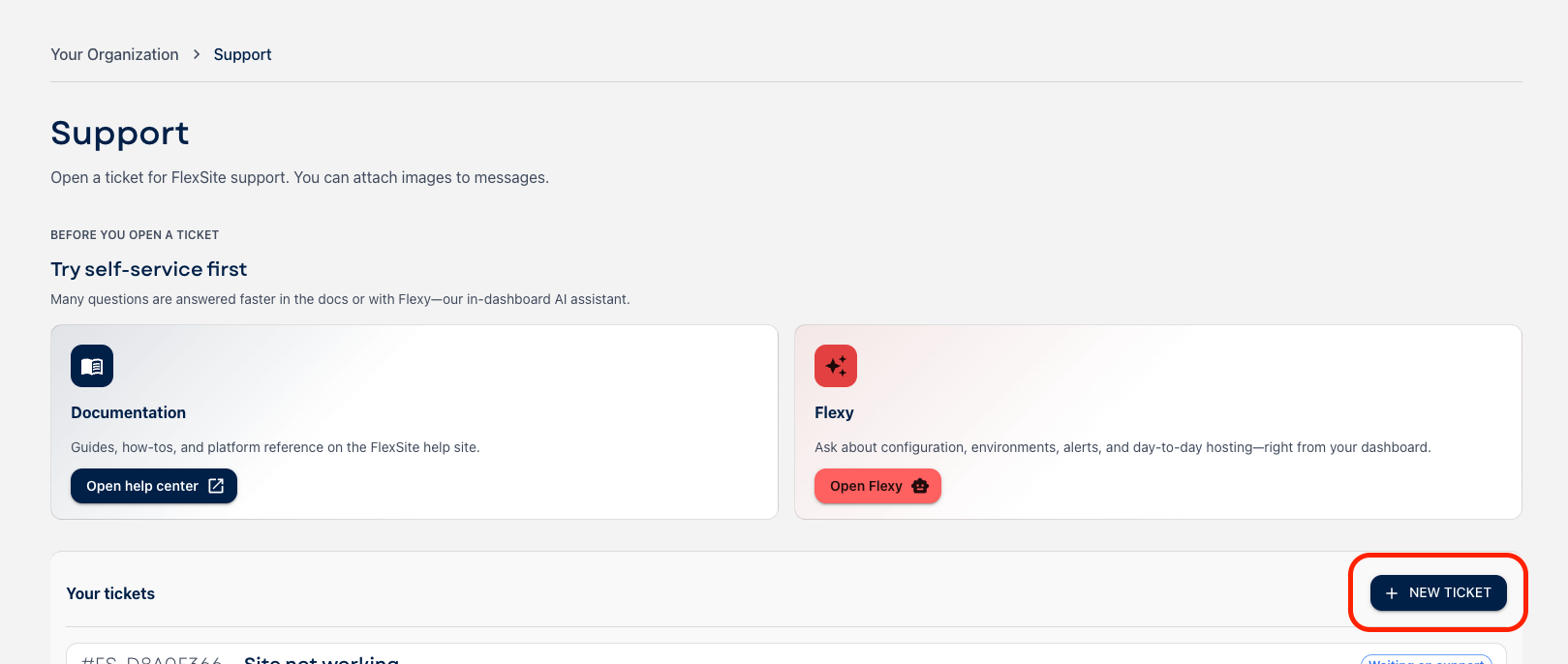
On the Support page, FlexSite suggests:
- Navigate this website for guides and reference.
- Flexy, the in-dashboard assistant, for quick questions about configuration and day-to-day use.
Use a ticket when you need a human on the team or something account-specific.
Open the Support page
- Sign in to FlexSite and open your organization in the dashboard.
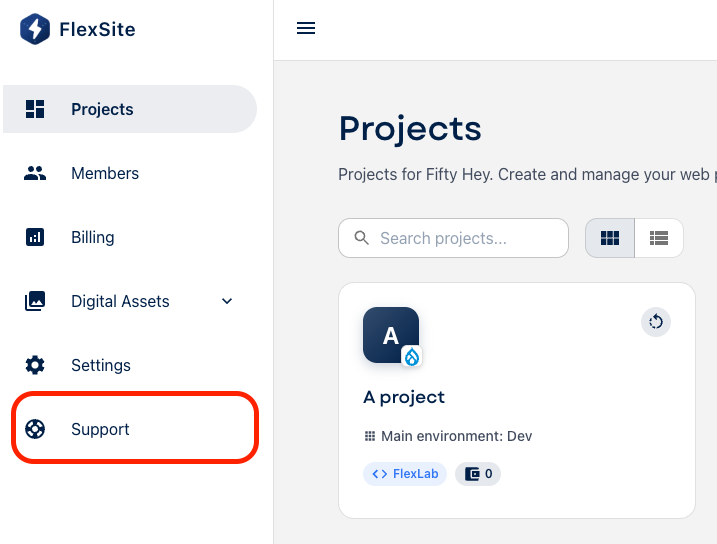
- In the sidebar, choose Support.
- From a project, you can use the Support entry that includes that project; the form can pre-select that project when you create a ticket.
Create a new ticket
- On Support, under Your tickets, click New ticket.
- The New support ticket dialog opens in two steps: Details, then Priority.
Step 1: Details
Subject
Short summary of the problem or request (up to 120 characters).
Describe the issue
Clear steps, what you expected, what happened, URLs, times, and any errors (up to 2,000 characters). More detail usually means fewer back-and-forth messages.
Project (optional)
Tie the ticket to a specific project, or leave Organization only if it is not project-specific.
Attach images
Optional. You can attach images (for example screenshots). Other file types are not uploaded on create from this screen.
Click Next: Set priority when subject and description are filled in.
Step 2: Priority
Pick the level that matches business impact and urgency. The dialog explains each level; in short:
- Low — Minor impact, no blocker (typos, nice-to-haves, non-blocking questions).
- Medium — Affects workflow but a workaround may exist.
- High — Major impact, limited or no workaround, or launch-critical.
- Urgent — Critical issues: outages, security concerns, or severe production incidents.
Choose honestly so the team can prioritize fairly.
Click Create to submit. While the ticket is being created, you will see a short “Creating your ticket” state.
After you submit
- The new ticket appears under Your tickets. Open it to read messages and history.
- Status labels such as Open, Waiting on support, Waiting on customer, and Resolved show where things stand.
- You may receive email updates when there is activity on the ticket (depending on how your organization’s notifications are set up).
Tips for a faster resolution
- One topic per ticket so threads stay clear.
- Reproduce steps and timestamps help a lot for bugs.
- Screenshots for UI issues; redact secrets before attaching.
- Use Urgent only for true emergencies so real incidents get immediate attention.