
Quality Metrics Overview
Applies to: All
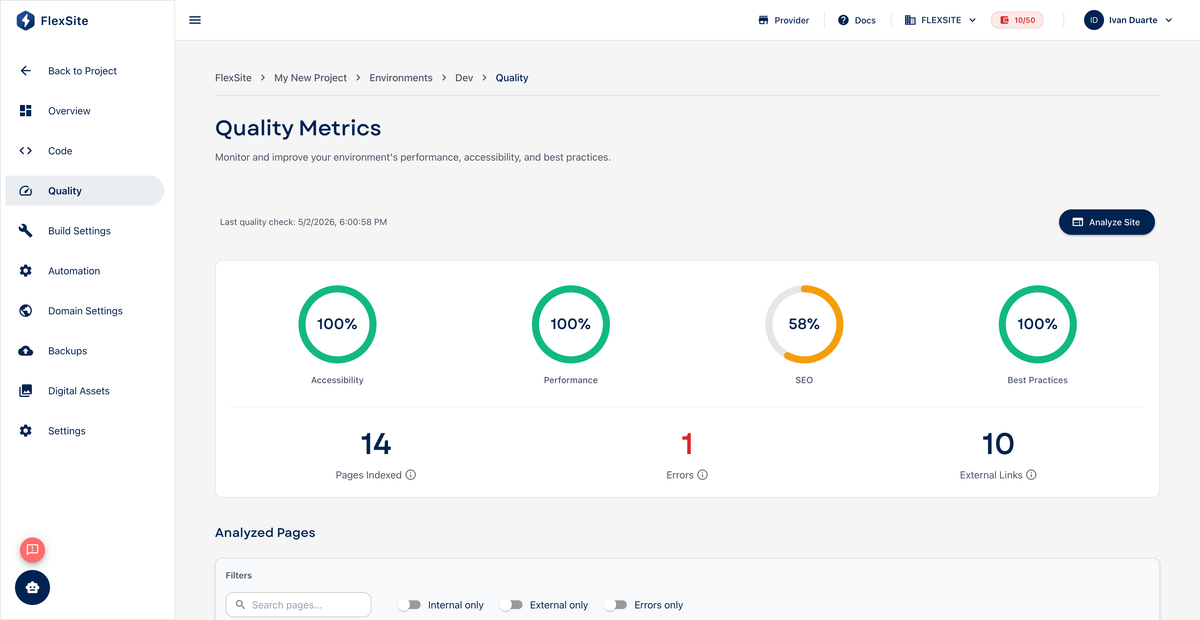
Overview
Quality reports help you answer: “Is our site fast, accessible, and healthy before we launch?” FlexSite runs automated checks (including Lighthouse, Google’s website health scorecard) and shows results on the project and each environment.
Key concepts
- Lighthouse — an industry-standard report that scores speed, accessibility, best practices, and SEO on a 0–100 scale. Higher is better.
- Performance — how quickly pages load for visitors. Low scores often mean caching or image size issues.
- Accessibility — whether people using screen readers or keyboard navigation can use your site. Important for compliance and inclusivity.
- SEO — basics search engines expect (titles, mobile-friendly layout, etc.).
- Advisory — a FlexSite suggestion linked from the report (e.g. “increase Redis”) with a fix path.
Available on Codeless and FlexLab. Atom shows a simplified view on Overview where applicable.
Steps — project-wide summary
- Open Quality in the project sidebar.
- Compare scores across environments — staging should be healthy before you sync to production.
- Click an environment row for detail.
Steps — environment report
- Open Environments, select an environment, then Quality.
- Run or Refresh the report if prompted.
- Read each category. Expand failing items to see plain-language explanations.
- Follow links to Build Settings, Themes, or advisories to fix root causes.
- Re-run the report after changes to confirm improvement.
Launch checklist (non-technical)
- Performance above your org’s threshold (many teams aim for 70+ on production).
- No critical accessibility failures on key templates (home, contact).
- SEO basics green after you set titles and meta descriptions in Drupal.
Low scores do not always block publication, but they predict slow or frustrating visitor experiences — worth fixing before marketing campaigns go live.